Simplify Consent Management on WordPress
Connect your WordPress website with Digital Anumati using the AbyM Consent Banner plugin. Configure your script from the WordPress dashboard and integrate the Digital Anumati consent experience with a clean, lightweight setup.
Consent integration without touching theme files
AbyM Consent Banner creates a straightforward connection between WordPress and the Digital Anumati consent service, so administrators can manage the initial integration from the familiar WordPress interface.
Easy Integration
Connect WordPress with Digital Anumati without modifying your theme files for the basic setup.
script Configuration
Enter the Digital Anumati script from the WordPress admin settings and save your configuration.
Consent Banner Integration
Enable the Digital Anumati consent experience on your WordPress website through the plugin connection.
WordPress-Friendly
Purpose-built for WordPress administrators, with configuration available inside the standard dashboard.
Lightweight Setup
Install, activate, add your configuration, and verify the consent banner on the frontend.
Privacy-Focused Workflow
Use Digital Anumati as the consent layer while retaining responsibility for your organization’s legal and privacy configuration.
From install to integration in five steps
A familiar WordPress workflow designed to keep implementation simple for administrators and implementation teams.
Install
Find the plugin on WordPress.org or install it from Plugins → Add New.
Activate
Activate AbyM Consent Banner from the Installed Plugins screen.
Add script
Open Settings → Digital Anumati and enter your assigned script.
Save
Save the configuration in your WordPress dashboard.
Verify
Open your website frontend and confirm the Digital Anumati consent experience.
See AbyM Consent Banner in Action
Use this section for your installation walkthrough video covering plugin install, activation, script setup, saving, and frontend verification.
See the WordPress setup
Real screenshots from the plugin installation and configuration workflow.
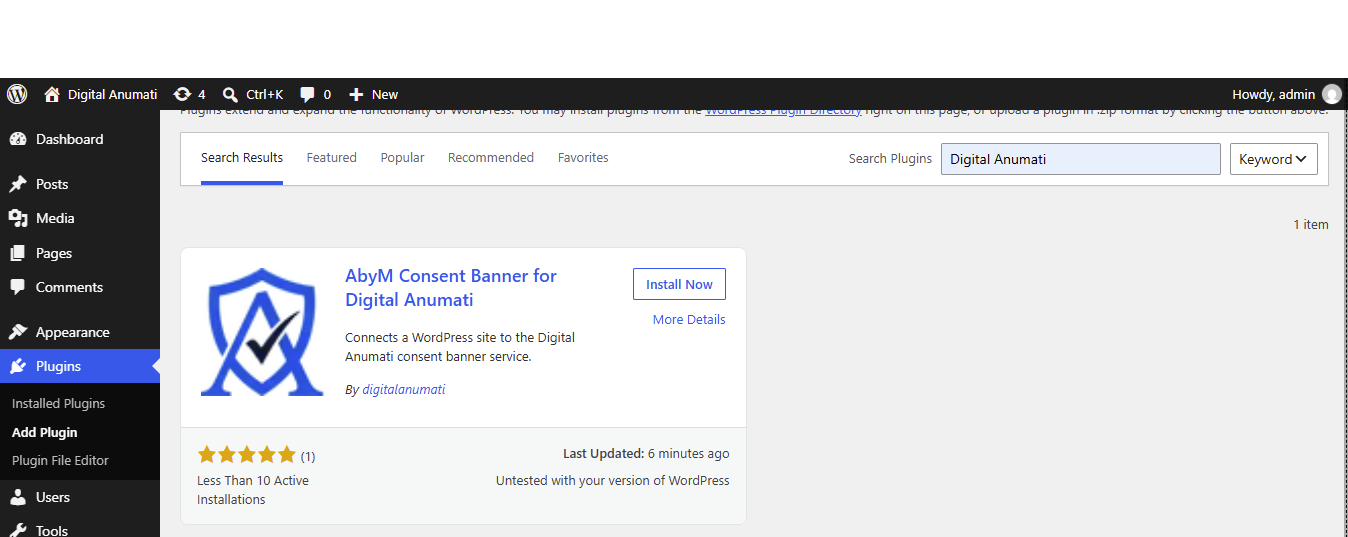
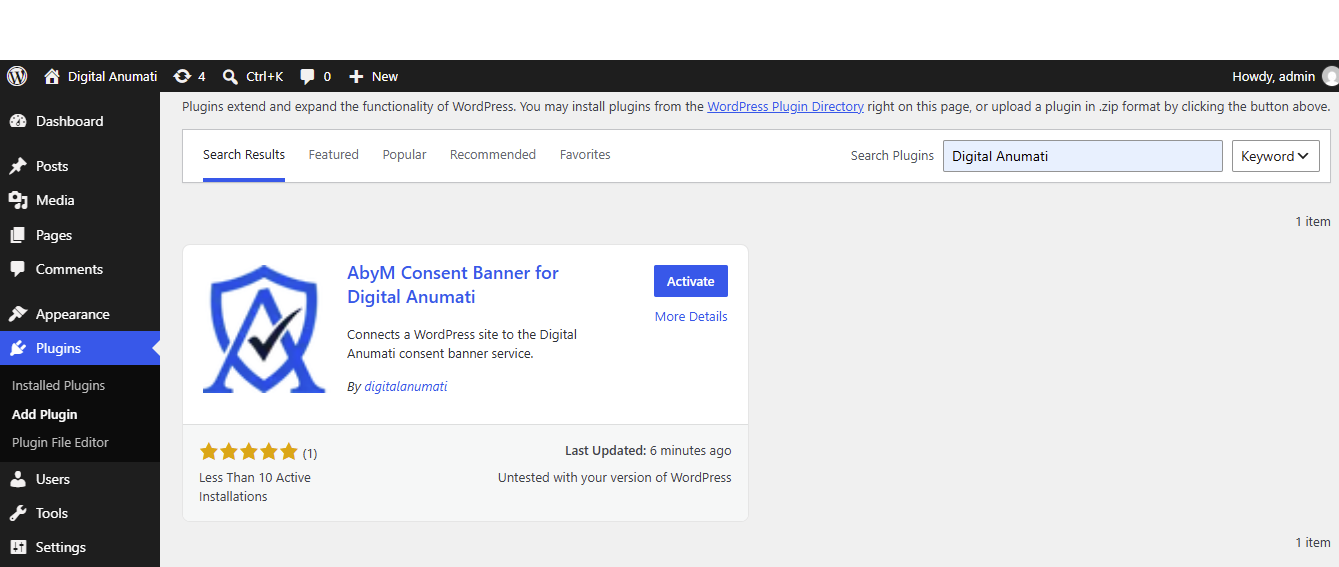
1. Find the plugin
Search for AbyM Consent Banner for Digital Anumati in the plugin directory.
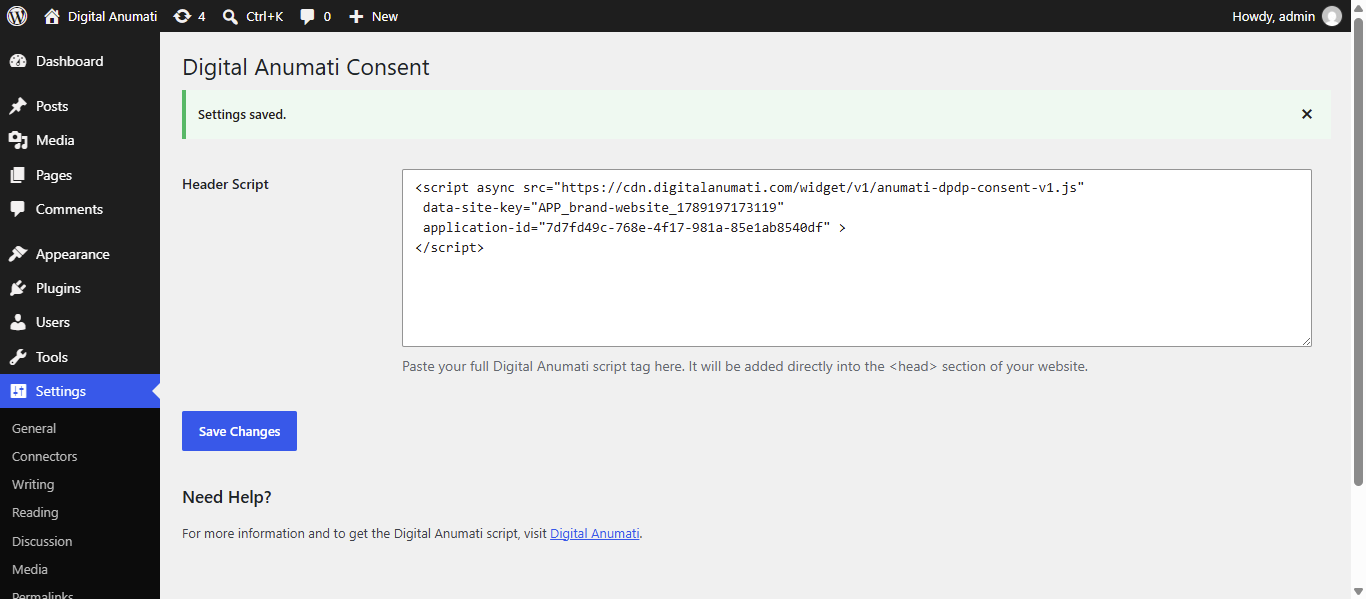
2. Activate the plugin
Activate it from the Installed Plugins page.
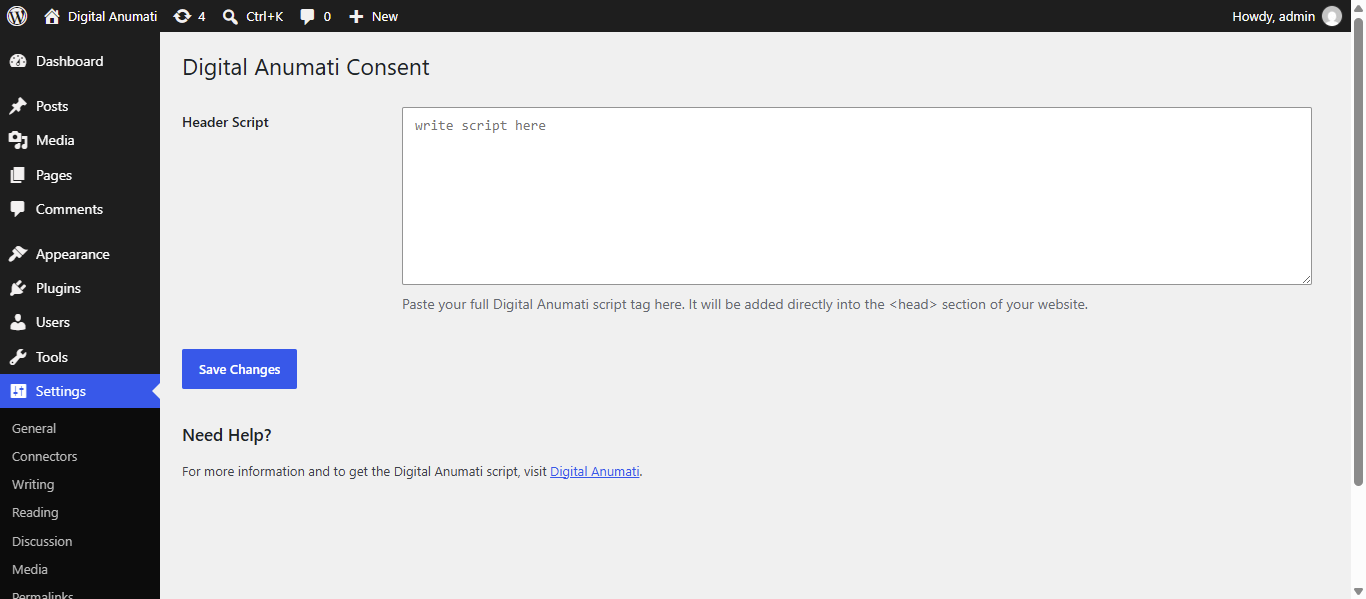
3. Open Digital Anumati settings
The Digital Anumati settings page appears under WordPress Settings.
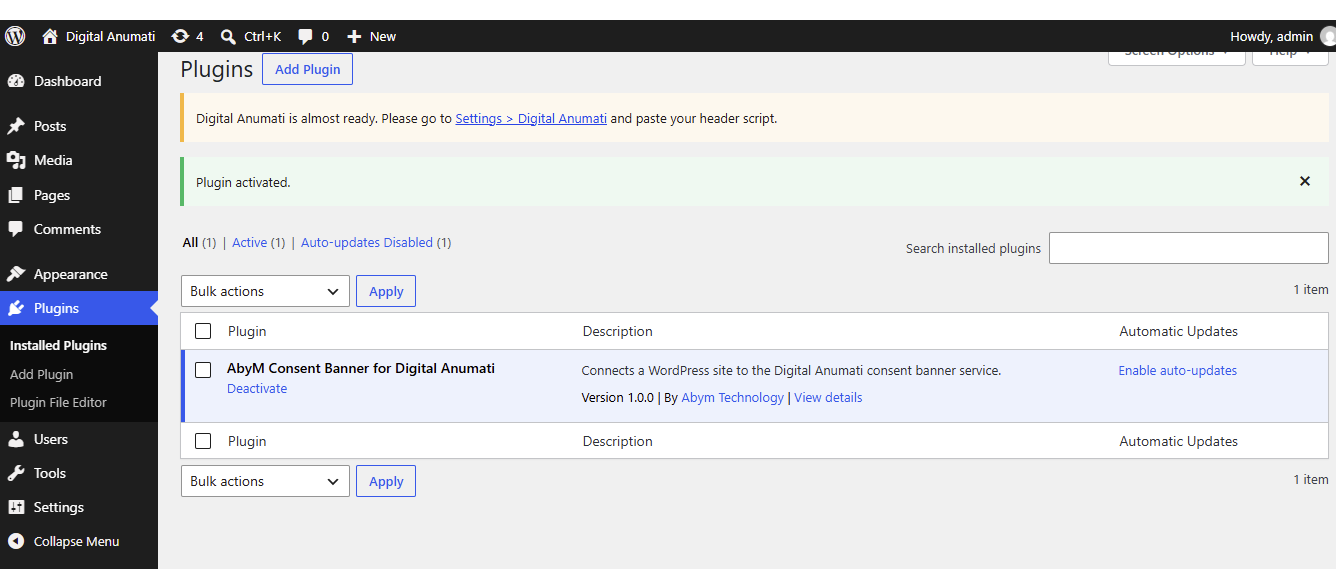
4. Enter the script
Paste your assigned Digital Anumati script into the configuration field.
6. Save changes
Save the configuration and continue with your frontend verification.
Understand India’s Digital Personal Data Protection Act
The Digital Personal Data Protection Act, 2023 (DPDP Act) establishes a framework for processing digital personal data in India. It focuses on lawful processing, transparency, consent, individual rights, and accountability for organizations handling personal data.
Explore DPDP Act ResourcesLawful Data Processing
Personal data may be processed for a lawful purpose where the Data Principal has given consent or where a permitted legitimate use applies.
Consent & Notice
Organizations should provide clear information about data processing and use consent mechanisms that make the individual’s choice understandable and actionable.
Rights of Data Principals
The Act provides rights including access to information about personal data, correction and erasure, grievance redressal, and the ability to nominate another individual.
Children’s Personal Data
The DPDP framework includes additional requirements for processing children’s personal data and calls for appropriate safeguards in services that may be used by children.
Data Fiduciary Responsibilities
Data Fiduciaries have obligations around responsible processing, security safeguards, breach-related responsibilities, retention, and responding to applicable rights and grievance requests.
Cross-Border Processing
Organizations should understand where personal data is processed or transferred and consider the restrictions and requirements applicable to transfers outside India.
Key chapters at a glance
Chapter 1
Preliminary — Sections 1–3
Chapter 2
Data Fiduciary obligations — Sections 4–10
Chapter 3
Data Principal rights and duties — Sections 11–15
Chapter 4
Special provisions — Sections 16–17
Chapter 5
Data Protection Board — Sections 18–26
Chapter 6
Board powers and procedure — Sections 27–28
Chapter 7
Appeals and dispute resolution — Sections 29–32
Chapter 8
Penalties and adjudication — Sections 33–34
Chapter 9
Amendments to certain Acts — Sections 35–44
What organizations should review
- Map the personal data your organization collects and the purposes for processing it.
- Review privacy notices and consent journeys for clarity and transparency.
- Provide practical processes for applicable access, correction, erasure and grievance requests.
- Maintain appropriate technical and organizational security measures.
- Review vendors, data sharing, retention practices and cross-border processing.
- Keep compliance documentation and operational processes aligned with applicable law and rules.
Install from the WordPress dashboard
Open Plugins
Log in to WordPress and go to Plugins → Add New.
Search & install
Search for AbyM Consent Banner for Digital Anumati and click Install Now.
Activate
Activate the plugin from your Installed Plugins page.
Configure
Go to Settings → Digital Anumati, enter the script or service configuration provided to you, and save.
Verify
Visit your website frontend and confirm your Digital Anumati consent experience is loading as expected.
Requirements
- WordPress 6.5 or higher
- PHP 7.4 or higher
- Digital Anumati account/service configuration
- Valid script / configuration supplied by Digital Anumati
Common questions
Answers to the installation and configuration questions we hear most often from WordPress administrators.
It is a WordPress plugin that connects a WordPress website with the Digital Anumati consent service.
Make Your WordPress Website DPDP Compliant Today
Join 1M+ businesses using Digital Anumati for consent management.